what are TikTok quick links?
The TikTok quick links that are provided allow you to bypass typical TikTok app checkout steps that slow you down and can cause you to miss out on limited releases. Using the links also reserve your item for an hour giving you some extra time to pay!

understanding discord alerts
Our stock alerts are based out of our discord community server. Restock alerts you have subscribed to will "ping" or "mention" to alert you. Discord can send push notifications for these alerts to your phone. Please note that if you have a computer and phone with discord open at the same time you will receive no alerts (mobile notifications will push through once your status naturally switches to "away" on desktop).
before you start
- Go to TikTok on your device's web browser and log in to your account. NOTE: Make sure you are logged in to TikTok on your web browser AND the app.
- Check your discord settings to make sure links will open in your device's default browser. See the video on how to check this.
- If you are using a new account then you'll need to add an address and payment method to your account before you can place an order. See the image below for reference.
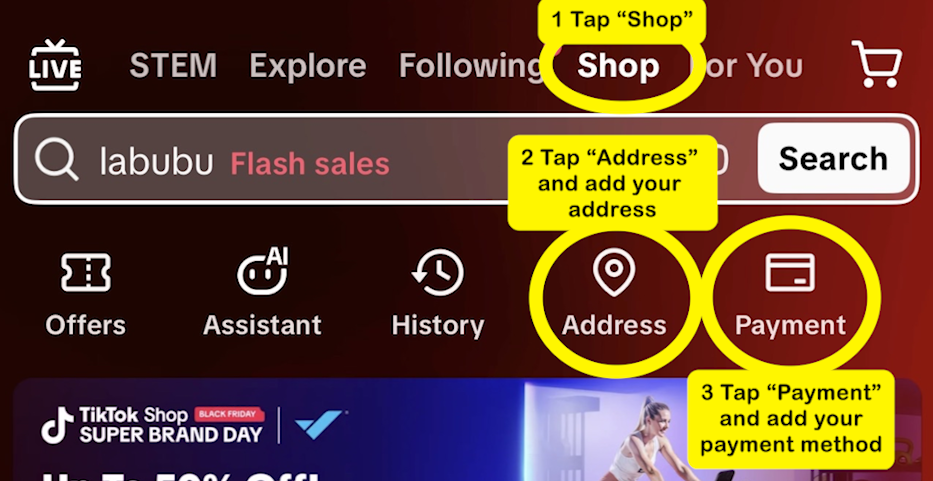
quick links for tiktok
- While a channel is live check the discord for links and alerts. When one appears that you want simply click the link that is posted. Alert links are direct links to the product checkout.
- When the product page loads you will be prompted with an out of stock message (if the item isn't available yet). Click "ok" in the prompt to refresh the page or manually refresh the webpage in your browser. Keep refreshing repeatedly until the item becomes available. WARNING: Spamming "ok" or refreshing the page too fast can cause your account to be "soft banned" for 24 hours. We recommend waiting a second or two between refreshes.
- When the item is available it will be a new page where you see "Place Order". Quickly select that button to reserve your item. NOTE: Only press the "Place Order" button once. This is important as multiple clicks can error out or cancel the order.
- Now swap to your TikTok app to complete the payment. Checking out in the browser can work but we recommend just swapping to the app to avoid any issues.
- From your main TikTok screen go to Shop tab → Orders → Headset Icon in the top right → Scroll down to and select "Contact TikTok Shop" → Select your order → Pay for the item. NOTE: Please refer to the videos for a more detailed walkthrough for your device since apple and android can differ but the steps above are universal.
NOTE: After step 3 is complete your item is reserved for 1 hour. Please remember that they can clear out the order queue if they are checking stock on the lives so don't wait too long.
out of stock meanings
This item ran out of stock. You can buy other items.
This prompt means the link is active but the item has not become available to purchase yet.
"The item has sold out." or "Something went wrong. Please try again"
These prompts mean the link is active, but the item has sold out. This also means flowbacks can occur for this item.
Some items ran out of stock and are not available for purchase now.
This prompt means they have deactivated the link. There are no more opportunities for flowbacks for this. The link can be reactivated at a later time but just consider the link unusable and the item cannot be purchased from this specific link anymore.
common issues & fixes
"What does X mean?"
Check the FAQ in our discord for any terminology you might not understand.
"Cannot ship to your address"
Product is out of stock or the page is not loading properly. Refresh the page or try and check out again.
"Something Went Wrong" while refreshing the page too fast
It can mean a few different things: if you get it, then refresh the page again. If it loads fine after then you are probably ok to keep refreshing just slow it down. If you keep getting the error then your account is "soft banned" for typically 24 hours. You can try the following steps to remove the "soft ban":
- In your browser (on the device you were trying on) go to https://www.tiktok.com/shop
- If you get a captcha, solve it. If not continue with the rest of the steps:
- Log completely out of your tiktok account
- Clear your cache, you might have to google how for your device/browser/etc.
- Log back in
NOTE: If these steps don't solve the issue then your account is almost guaranteed to be "soft banned" for around 24 hours (sometimes more). You can try and bypass this by using another account but it typically only works on another device.
"Link tab closes when tapping/clicking ok"
Clicking the link from discord will ensure the tab doesn't close usually. Regardless if your page keeps closing then just manually refresh the page in your browser rather than hitting "ok" in the out of stock prompt. If you are changing the quantity of the item then you will need to refresh the page manually rather than using the "ok" button.
"Slow loading or slow refreshing"
Make sure you are connected to your wifi or have a good stable connection with your phone service. We don't recommend VPN's unless you are out of the country to have the best connection possible.
"Cannot find where to pay for the item I carted using the link method"
Go through the payment portion of the quick links guide or watch the videos.